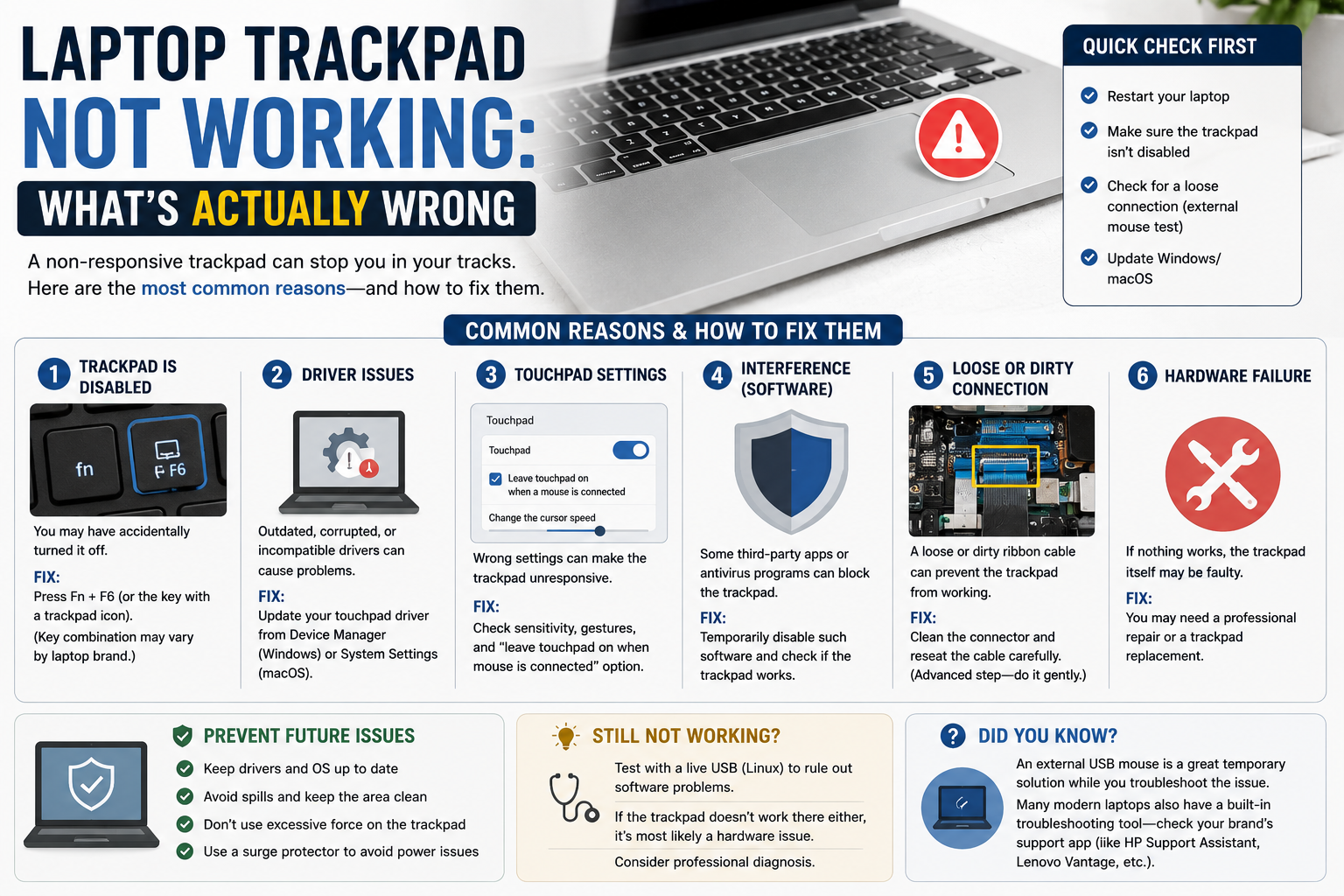
Laptop Trackpad Not Working: What’s Actually Wrong
A frozen cursor is usually a settings or driver problem, not a broken trackpad. Sat down to finish an email once, cursor just… didn’t move. Tapped it a few times like that would help. It didn’t. Took me longer to find an external mouse than it eventually took to actually fix the thing.
A laptop trackpad not working feels like a hardware death sentence in the moment. Most of the time it really isn’t. Settings, drivers, and a couple of dumb little toggles cause this far more often than an actual broken part.
Rule Out the Simple Stuff First
Before touching any settings, check if the whole laptop’s frozen, not just the trackpad. Try Ctrl+Alt+Delete on Windows or Cmd+Space on a Mac. If neither responds, this isn’t a trackpad problem at all, it’s a full system lockup, and a restart is the actual fix.
An External Mouse Might Be the Culprit
Both Windows and macOS let you disable the trackpad automatically whenever a mouse is plugged in. How-To Geek’s guide points out this exact setting trips people up constantly, since it’s easy to forget it’s even turned on. Unplug the mouse and test again before assuming anything’s actually broken.
Checking Windows Settings
Go to Settings, then Bluetooth & Devices, then Touchpad. Sounds obvious, but plenty of people skip this step and go straight to reinstalling drivers for something that was just switched off. A lot of laptops also use a keyboard shortcut, usually Fn plus a function key with a trackpad icon, that can toggle it off by accident.
When It’s Disabled in the BIOS Instead
If Windows settings look fine and the trackpad still won’t respond, the issue might sit deeper, in the BIOS itself. Restart and press F2, Del, or F10 during startup, depending on your laptop brand, then look for a section labeled Advanced or Integrated Peripherals. Fan Tech’s troubleshooting guide walks through this in more detail, and it’s a step a lot of basic guides skip entirely.
Driver Problems, the Most Common Software Cause
Outdated or corrupted drivers cause a huge chunk of these issues, especially right after a Windows update. Dell’s own troubleshooting guide covers this from the manufacturer’s side, and it lines up with what most independent guides say too.
Rolling Back a Bad Driver Update
Open Device Manager, find the touchpad under Mice and other pointing devices, right-click, and check Properties, then the Drivers tab. If there’s a Roll Back Driver option available, that’s usually the fastest fix when the problem started right after an update.
When a Reinstall Works Better Than a Rollback
Sometimes rolling back isn’t an option. In that case, uninstalling the driver entirely and restarting the laptop forces Windows to reinstall a fresh default driver automatically. A university IT department’s own internal notes on a Dell trackpad suddenly not working confirm this is often the first thing techs try, and it works more often than people expect for something so simple.
Could It Actually Be Hardware?
Sometimes, yeah. If software fixes don’t touch it at all, a physical cause is worth considering. A loose internal cable is a real possibility, especially after a laptop’s been dropped or bumped hard. There’s an old but still relevant Tom’s Guide forum thread on a broken laptop trackpad where a dislodged cable turned out to be the actual cause after a drop, not a software issue at all.
A More Serious Hardware Cause Worth Knowing
On thinner, newer laptops, a swollen battery sitting right underneath the trackpad can physically block it from clicking properly or cause strange ghost-touch behavior. If the trackpad looks physically raised or the case doesn’t sit flat anymore, stop using the laptop and get it checked, this isn’t something to keep pushing through. We went into this exact scenario in more depth in our piece on why a Surface laptop trackpad pops out of place, which covers the physical warning signs clearly if that sounds like what you’re seeing.
Mac Users: A Slightly Different Path
On a MacBook, check System Preferences, then Accessibility, then Pointer Control, then Mouse & Trackpad. There’s an option to disable the trackpad whenever an external mouse connects, and it’s on by default on some setups. Resetting NVRAM, by restarting and holding Option, Command, P, and R together, also clears out a lot of stubborn trackpad glitches on Macs specifically.
Common Mistakes People Make Troubleshooting This
- Jumping straight to a full driver reinstall before checking the obvious settings toggle first.
- Assuming it’s broken hardware immediately, when a simple restart or driver rollback fixes most cases.
- Ignoring a physically raised or bulging trackpad and continuing to use the laptop anyway.
Worth saying plainly: start with the free fixes, settings, restarts, driver rollbacks, before spending money on a repair that might not even be needed.
If Overheating Is Also in the Picture
Heat and trackpad issues sometimes show up together, especially on laptops already struggling with airflow. If your trackpad problems started around the same time your laptop’s been running unusually hot, our guide on overheated laptop screens is worth a look too, since the underlying hardware stress can affect more than just the display.
And if you’re shopping for a replacement laptop altogether, keep in mind that laptop prices have shifted a fair bit in 2026, so it’s worth checking current pricing before assuming a repair costs more than a replacement.
Quick Questions People Ask
Why did my laptop trackpad suddenly stop working?
Most often a driver conflict after a Windows update, or the trackpad getting accidentally disabled through a keyboard shortcut or settings toggle.
How do I re-enable a disabled trackpad on Windows?
Go to Settings, Bluetooth & Devices, Touchpad, and make sure it’s toggled on. Also check for an Fn key shortcut that might have switched it off.
Can a driver update break my trackpad?
Yes, this happens often enough that it’s one of the first things to check. Rolling back the driver in Device Manager usually fixes it.
Is a non-working trackpad ever a sign of a bigger problem?
Sometimes. A physically raised or bulging trackpad can point to a swollen battery underneath, which is worth getting checked rather than ignored.
Should I just use an external mouse instead of fixing it?
As a short-term fix, sure. Long-term, it’s worth figuring out the actual cause, especially if it turns out to be something like a battery issue that can get worse over time.
Bottom Line on a Laptop Trackpad Not Working
Most of the time, this traces back to a setting, a driver, or a keyboard shortcut, not a broken trackpad. Work through the simple fixes first, and only start worrying about hardware once those are genuinely ruled out.